

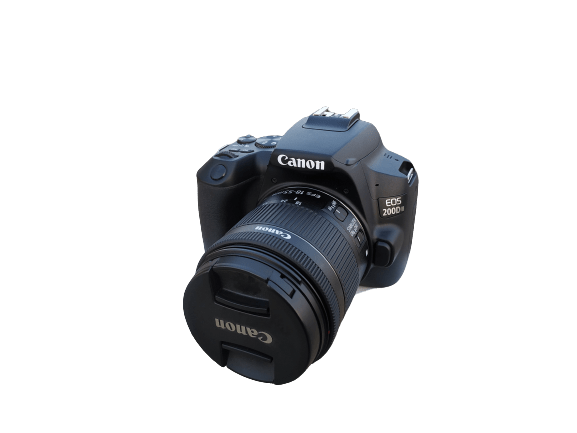
 The Canon EOS 200Dii is a fantastic mid-range DSLR camera for videos and photography. But, does the Canon 200Dii have a time-lapse feature? You might wonder about this feature if you’re into vlogging. So let us give you the answer.
The Canon 200Dii does have a time-lapse feature. All you need is to enable the feature and make suitable adjustments to the Shooting settings to go ahead. So you got the answer about the time-lapse feature of the Canon 200Dii.
| Disclaimer: As an Amazon Associate, I earn from qualifying purchases. |
The Canon 200Dii is a perfect DSLR camera for photography and vlogging beginners. The camera is equipped with an EF-S 18-55mm f/4-5.6 IS STM kit lens, which is quite okay for recording videos or taking pictures.
Canon EOS 200Dii
- 24.2MP APS-C CMOS Sensor
- DIGIC 7 Image Processor
- Vari-angle Touchscreen
- 3,975 Selectable focus positions
- Built-in Wi-Fi and Bluetooth
- EF-S 18-55mm f/4-5.6 IS STM Lens
Plus, the Canon 200Dii comes with a 24.1MP APS-C CMOS Sensor as well as a Dual Pixel CMOS autofocus. Moreover, this camera has 3,975 focus positions and Smooth Skin Eye Detection AF, which are fantastic for vlogging.
If you’re curious about the external microphone, then the Canon 200Dii does have the external microphone input. Furthermore, the image stabilization feature comes in handy when you’re making videos, and the Canon 200Dii does have that feature too, but it’s available in the kit lens. It also has digital IS in the body, which enhances the footage stability when you’re on the go.
BOYA By MM1
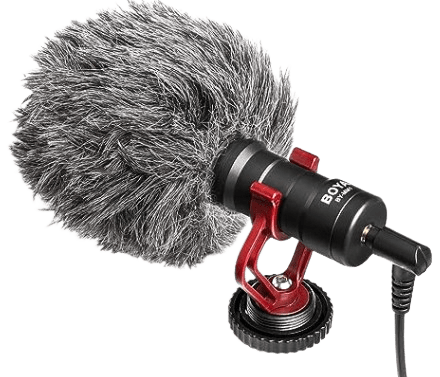
- Weighs 0.19 Pounds
- 3.5 mm Jack
- Plug-n-play – no batteries required
- Shotgun condenser microphone
- Compatible with iPhone and Android Phones
Don’t worry if you’re new to making videos or vlogs on Canon 200Dii and are not sure how to record time-lapses on this camera; we won’t leave you high and dry.
We’ll walk you through the whole process of setting up your Canon 200Dii DSLR camera for shooting a time-lapse.
How to Record the Time-lapse on Canon EOS 200Dii
Here are the steps involved in recording a time-lapse using the time-lapse feature on the Canon 200Dii DSLR camera:
- Go to Shooting settings
- Select Time-lapse movie
- Enable time-lapse
- Adjust interval and shots
- Choose movie recording quality
- Hit the record button
Let’s discuss these steps further:
1. Go to Shooting settings
To record the time-lapse on Canon 200Dii, press the menu button on the left side of the touchscreen and go to the Shooting settings. This is where you can set or change the shooting settings of this camera.
2. Select a Time-lapse movie
Select the option called Time-lapse movie from shooting settings, and you’ll enter the time-lapse section of this camera.
3. Enable time-lapse
You’d find the time-lapse option disabled by default. All you need is to enable it to record a time-lapse on Canon 200Dii. Once enabled, you’d stumble upon various time-lapse options for recording different scenes, such as moving fast objects like traffic or slowly moving clouds. You can opt for the suitable one or go for a custom option.
4. Adjust interval and shots
If you’re not happy with the default interval and number of shots settings, you can adjust them according to your requirements. Tap on the interval and shots option to make all necessary adjustments regarding this.
5. Choose movie recording quality
You can either shoot the time-lapse in FHD or 4K. Once you have set the interval and shots, the next step is the recording quality. It’ll be better if you select FHD for the time-lapse. That’s all.
6. Hit the record button
Once you’re done with the above-mentioned settings, you can hit the record button just like a normal movie recording. When it’s finished, you’ll have a perfect time-lapse recorded to use in the videos.
Can You Make a Time-lapse with the Canon EOS 200Dii Manually?
The main difference between making a time-lapse with the time-lapse feature in the Canon 200Dii and making it manually is that you have more control over the time-lapse quality when you’re using the time-lapse feature, because you can adjust the interval and shots according to the requirements.
I have been recording time-lapses without using the time-lapse feature on the camera for years. All you need is to shoot the video and fast-forward it in post-production. So the answer is “yes.” You can make a time-lapse with the Canon 200Dii manually or without using the time-lapse feature in the camera.
You don’t necessarily need to mess with the frame rates or any other settings whatsoever. Just stick with your default settings. I shoot videos at 24 FPS, and I simply record 10 to 20 minutes of footage and fast-forward it in the video editing software. I use Filmora 11 for my video editing.