
The iPhone 15 Pro Max’s front camera has a pretty decent stabilizing capability for recording handheld footage. The iPhone 15 Pro Max does have a stabilization feature called “Enhanced Stabilisation” that users can toggle on and off. This feature can be accessed through Settings > Camera > Record Video. However, in some cases, the Action Mode also helps users stabilize the footage.
iPhone 15 Pro Max offers 4K video recording and allows users to shoot up to 120 fps. This iPhone edition, just like others, comes with a native slo-mo video recording feature. Users can shoot slo-mo videos with both front and back cameras.
I won’t dive into iPhone 15 Pro Max’s slo-mo settings, cinematic modes, and video recording formats because that’s the discussion for another day.
So, the gist of the blog post is that the iPhone 15 Pro Max does have built-in video stabilization to turn on or off the stabilization.
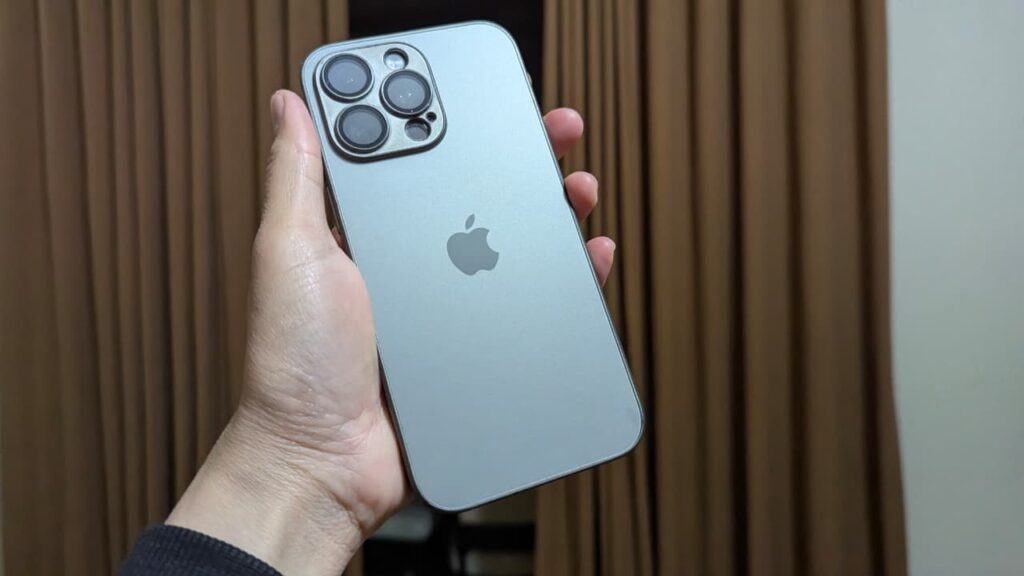
Is the iPhone 15 Pro Max good for vlogging?
I have been vlogging on the iPhone 15 Pro Max for over a year, and I can vouch for this. It’s an incredible phone for vlogging. This iPhone offers every essential feature that a vlogger needs to record compelling vlog footage.
I’ve used both point-and-shoot and DSLR cameras in the past, and now have completely switched to iPhone vlogging. My iPhone comes in handy at some places where DSLR cameras aren’t allowed, for instance, in some restaurants or stadiums.
I’d still vlog on my iPhone 15 Pro Max even if I hadn’t sold my DSLR camera because it’s not easy to carry a DSLR camera around. I have done vlogging on a Nikon D5300 from 2017 to 2021, so I know exactly what it looks like.
Without a doubt, the iPhone 15 Pro Max is good for vlogging.
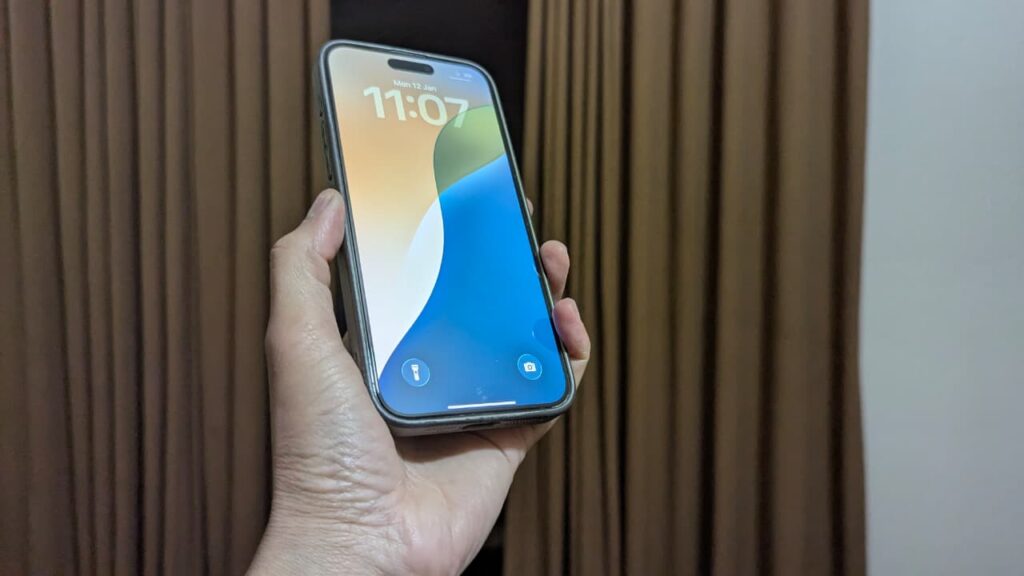
Best tips to stabilize iPhone 15 Pro Max footage
Let’s take a look at some essential tips:
1. Use a reliable tripod stand
A tripod is the most effective way to eliminate camera shake entirely. While the iPhone 15 Pro Max front camera benefits from electronic stabilization, it still cannot compensate for continuous hand movement over long recordings.
Using a tripod is especially important for:
- Talking-head videos
- Vlogs recorded indoors
- Time-based recordings (interviews, tutorials, reels)
A sturdy tripod keeps the frame locked, allowing the phone’s internal stabilization to fine-tune micro-movements rather than fight major shakes.
2. Utilize a phone gimbal
A phone gimbal provides mechanical stabilization, which works in conjunction with Apple’s electronic stabilization.
This is particularly useful when you are:
- Walking while recording
- Vlogging outdoors
- Panning or following movement
Although the iPhone 15 Pro Max does a good job with stabilization, electronic stabilization alone cannot fully eliminate the walking motion. A gimbal physically counters motion in real time, producing far more cinematic and stable footage.
3. Switch to 30 or 60 fps
Frame rate directly impacts how smooth stabilized footage looks.
- 30 fps offers a natural, cinematic look and works well for stationary or lightly moving shots.
- 60 fps captures more frames per second, which helps the iPhone’s stabilization algorithms work more effectively, especially during movement.
Avoid very low frame rates when stability matters, as fewer frames give stabilization software less data to correct motion.
4. Avoid rapid and frequent movements
Electronic stabilization has limits. Sudden jerks, quick hand movements, or constant repositioning can overwhelm the stabilization system, resulting in visible shakes or warping.
To improve stability:
- Move slowly and deliberately
- Pan instead of snapping the phone left or right
- Pause briefly before changing angles
Controlled motion allows the iPhone 15 Pro Max’s stabilization to perform optimally.
5. Put your phone on a fixed surface while recording
If a tripod or gimbal is unavailable, placing your phone on a stable surface (desk, shelf, table, wall support) is a practical alternative.
This works well for:
- Quick recordings
- Indoor videos
- Face-camera content
Even basic support dramatically reduces shake compared to handheld recording and lets the camera’s stabilization handle only minor vibrations.